
Last week, we wrote about why so many websites were rushing out emergency security updates. The short version: AI is finding old flaws in the software behind the web faster than anyone expected, and everyone is scrambling to fix them.
Since then, we’ve heard one question more than any other: “So… are we okay?”
The honest answer is “it depends on who’s responsible for what.” Most website owners have never had to think about that. Their site just works, until the week it doesn’t.
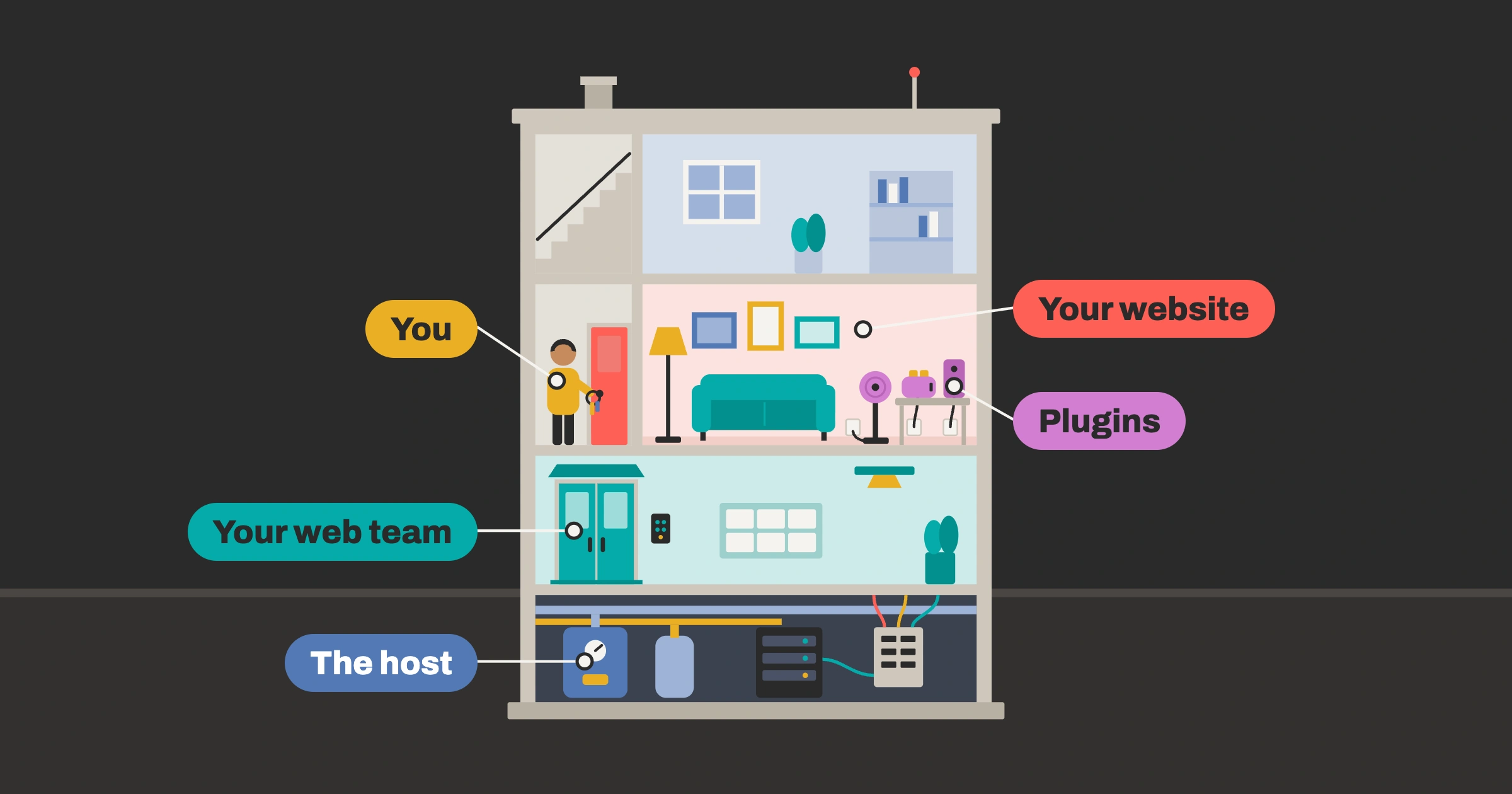
So let’s make it simple. Think of your website as an apartment in a building.
- You’re the tenant. You decide who gets a key, and you’re the one who notices if something seems off.
- Your hosting company is the landlord. It owns the building and is responsible for the foundation, the plumbing, and the wiring.
- Your web team is the building’s handyman. It keeps the fixtures working, changes the locks when they wear out, and handles the repairs you can’t do yourself.
When something goes wrong, the first question is always: whose part of the building is it? Last week’s biggest problem, a flaw in a piece of software called PHP that runs underneath millions of websites, was a crack in the foundation. No amount of tidying up your apartment could fix it. The landlord had to.
That’s why it’s worth knowing who your landlord is.
What a host actually is
A website is a collection of files: your pages, images, and the software that puts them together when someone visits. Those files have to live on a computer that’s switched on, connected to the internet, and running 24 hours a day. That computer is called a server, and the company that owns and runs it is your host.
You probably pay your host a monthly or yearly fee. You may have never talked to them. But they’re responsible for the part of your website you can’t see, and that part was where last week’s biggest problem lived.
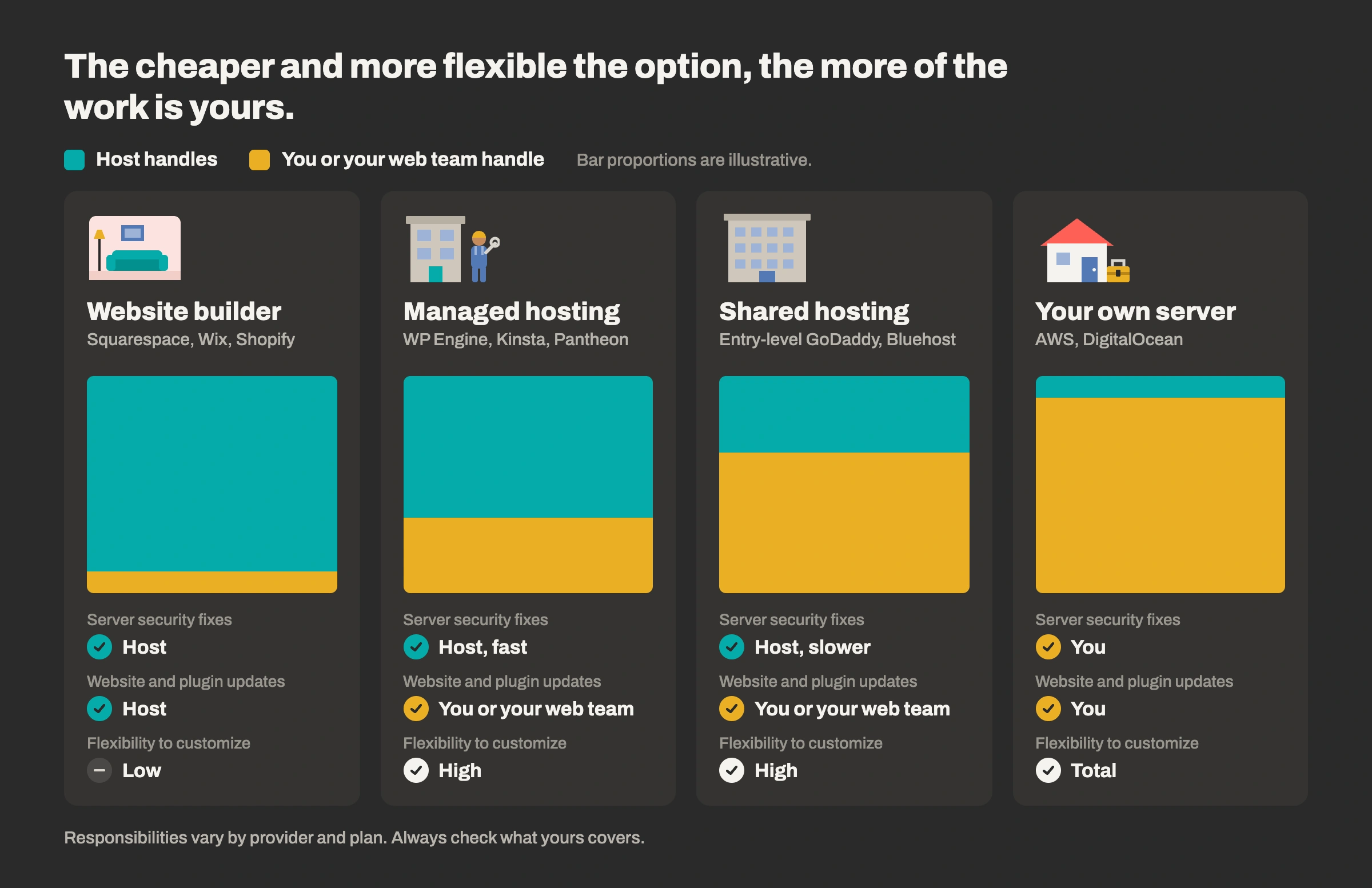
Not all hosts take on the same amount of responsibility. Here are the four kinds you’re most likely to run into.
1. Website builders: the furnished apartment
Examples: Squarespace, Wix, Shopify, WordPress.com.
You rent a fully furnished unit and the landlord handles nearly everything: the building, the locks, the security, the updates. The trade-off is that you can’t renovate much. You work within the layouts and features they offer.
For security, this is the most hands-off option. When last week’s PHP flaw hit, owners of sites like these generally didn’t have to do anything. WordPress said publicly that sites hosted on its own platforms were already protected.
2. Managed hosting: the full-service building
Examples: WP Engine, Kinsta, and Pantheon (popular for Drupal).
Think of a building with an on-site superintendent. The host specializes in one type of website, such as WordPress, and actively maintains the server underneath it. It applies security fixes to the foundation quickly, usually without being asked. Most also include backups, monitoring, and protection that blocks common attacks.
You still choose your own furniture (your design, your plugins), and someone still needs to maintain those. But the foundation is in professional hands. This is the standard YMC requires for every website we manage, and we make sure we have access to the hosting account so we can act quickly when it counts.
3. Basic shared hosting: the budget building
Examples: entry-level plans from companies like GoDaddy, Bluehost, or HostGator, often around $5 to $15 a month.
Your site shares a server with hundreds or thousands of other websites. The landlord keeps the lights on and will fix the foundation eventually, on their own timeline. Much of the day-to-day upkeep falls to you. Many of these plans also let you keep running old versions of the software underneath your site, versions that no longer receive any fixes, without much warning.
There’s nothing wrong with shared hosting for a simple site. But the low price often means more of the responsibility is quietly yours.
4. Your own server: you own the building
Examples: a server rented from a company like Amazon Web Services, DigitalOcean, or Linode, or one sitting in an office closet.
You have total control and total responsibility. Every repair, including the foundation, is your job or your web team’s job. That’s a reasonable choice for organizations with a dedicated technical team. For most small businesses and nonprofits, it’s more building than they need.
The takeaway: a cheap host isn’t actually cheaper if it leaves the foundation repairs to you. When you compare hosts, ask what they fix for you, how fast, and what’s left on your plate.
Why plugins are the weak spot
If you have a WordPress website, you almost certainly have plugins. They’re add-ons that give your site extra abilities: a contact form, a photo gallery, an online store, search engine tools, a cookie banner. They work a lot like apps on your phone, and WordPress offers tens of thousands of them.
That flexibility is what makes WordPress so popular. It’s also its biggest security weakness.
Here’s why. WordPress itself is built and checked by a large, well-organized community. Plugins are not. Each one is made by a different developer, and those developers range from large companies with security teams to one person working on weekends. When you install a plugin, you’re trusting whoever built it to have done careful work, and to keep doing it for as long as you use it.
In apartment terms, every plugin is another door into your unit. Most of those doors have good locks. But you only need one bad lock for someone to get in.
The numbers make the point better than any analogy. Patchstack, a company that tracks WordPress security problems, counted 11,334 new vulnerabilities in the WordPress world in 2025, up 42 percent from the year before. Of those, 91 percent were in plugins and 9 percent were in themes (the add-ons that control how your site looks). WordPress itself accounted for just six, and all six were minor.
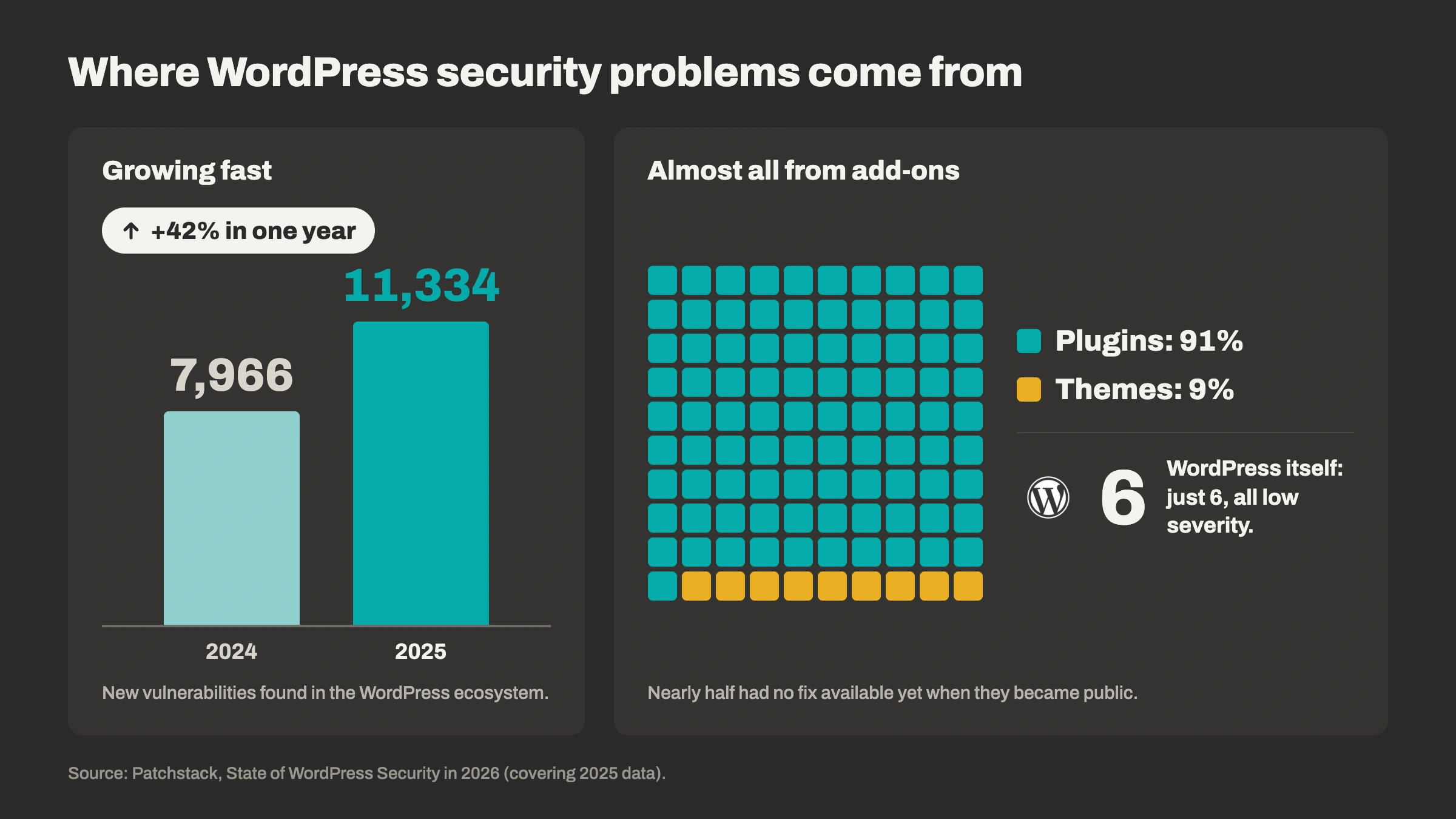
There’s one more number worth knowing. Patchstack found that nearly half of the problems it tracked had no fix available yet when they were made public. Sometimes the lock is known to be broken before anyone has a replacement. When that happens, the safest move is often to switch off or remove that plugin until a fix arrives, and that’s a decision someone has to be watching closely enough to make.
Plugins also get abandoned. A developer loses interest, sells the plugin, or stops updating it. The plugin keeps working on your site, so nobody notices, but it stops getting security fixes. Years later, it’s still there: an old door with a lock nobody has looked at in a long time.
The practical lessons are simple:
- Fewer plugins means fewer doors. If you’re not using a plugin, remove it. Deactivating it isn’t enough; delete it.
- Favor plugins that are actively maintained. Recent updates and a responsive developer are good signs. A plugin that hasn’t been updated in a year or more is a warning sign.
- Be careful with free plugins from unknown sources. A plugin downloaded from a random website can be the problem itself, not just a door to one.
A note for Drupal sites: Drupal calls its add-ons “modules” instead of plugins, but the same idea applies. Drupal itself is well maintained by a dedicated security team. The add-on modules, built by many different developers, are where most of the risk lives. Earlier this month, Drupal’s security team published 26 security notices for add-on modules in a single round of announcements.
Every plugin is another door into your website. You only need one bad lock
Five questions to ask whoever runs your website
You don’t need to understand any of this in technical detail. You just need to know who holds which keys. Send these five questions to your web team, your developer, or whoever set up your site. Here’s what a good answer sounds like for each one.
- Who hosts my website, and do they apply security fixes to the server for me? A good answer names the company and confirms they handle server updates. If the answer is “I’m not sure” or “we do that ourselves when we get to it,” that’s worth a follow-up conversation.
- Who updates the website itself and its plugins, and how quickly after a fix comes out? A good answer names a person or team and gives a timeframe. Urgent security fixes should be applied within a day or two, sometimes within hours. “Whenever we have time” isn’t a plan.
- Is anything on my site old enough that it no longer gets security fixes? This includes the version of WordPress or Drupal, the software underneath it, and any plugins that have been abandoned. A good answer is either “no” or “yes, and here’s our plan to upgrade.”
- Who has a login to my website, and do they all still need one? Former employees, past agencies, and one-time contractors often still have working logins years later. A good answer comes with a list of current users and a recent cleanup. Bonus points if logins require a second step, like a code sent to your phone. (This is called two-factor authentication, and we’ve just turned it on for every site we manage.)
- If something went wrong, how would we know? This is the question most people never think to ask, and it’s the one our clients most want answered. A good answer describes active monitoring: someone or something checking the site regularly, not just waiting for a visitor to complain. It deserves its own section.
“If something went wrong, how would I know?”
When most people picture a hacked website, they imagine a skull and crossbones on the homepage. That almost never happens anymore. Most attackers don’t want to show off. They want to use your website quietly, for as long as possible, to send spam, sell fake products, or redirect your visitors somewhere else.
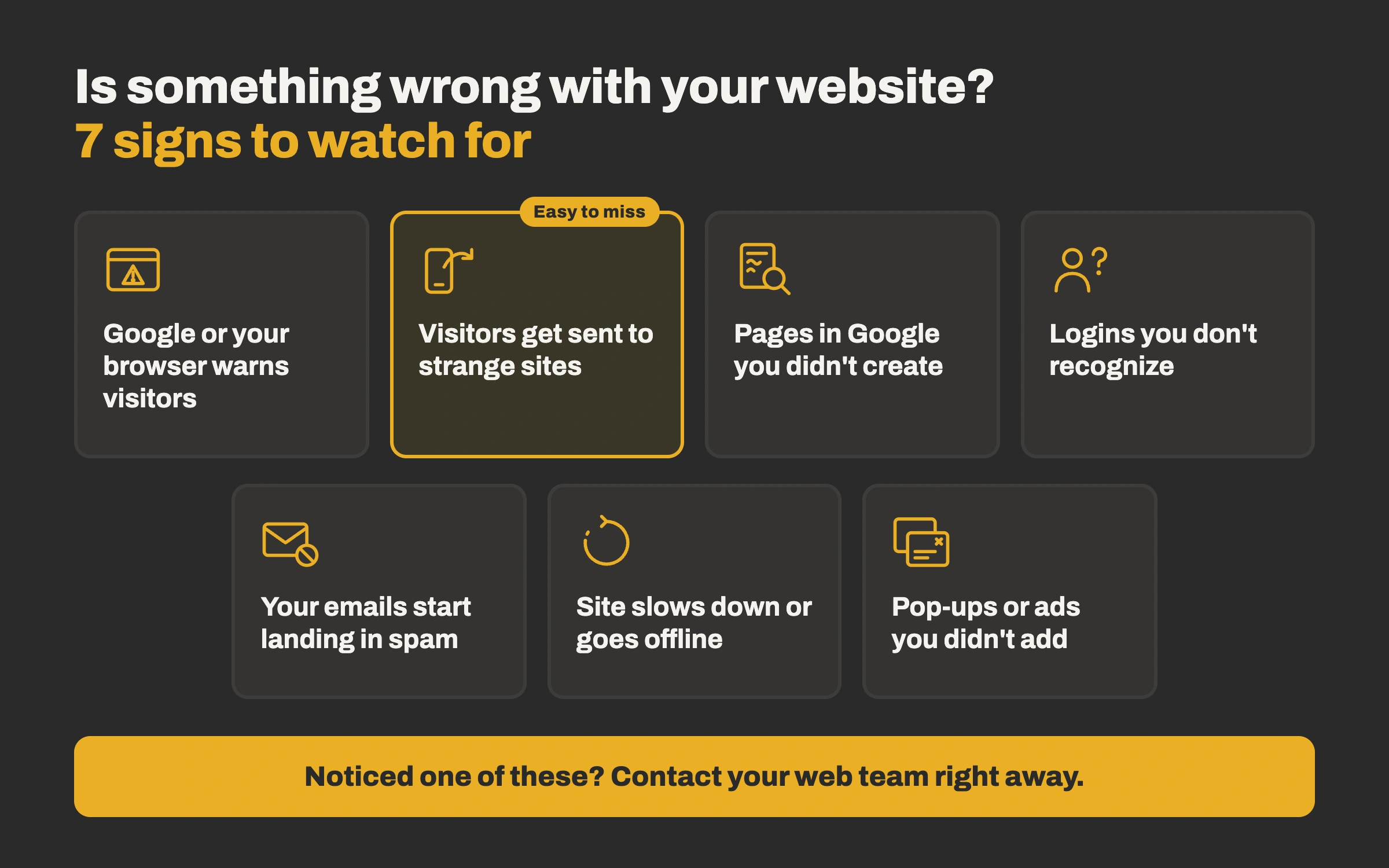
That makes the warning signs subtler. Here’s what you, your staff, or your customers might actually notice.
Google warns people about your site. Your listing in Google search results shows “This site may be hacked,” or visitors see a full-screen red warning page before your site loads. This is one of the most common ways owners find out, and it can hurt your traffic quickly.
Visitors end up somewhere they shouldn’t. Someone tells you they clicked a link to your site and landed on a gambling, pharmacy, or adult website. Here’s the tricky part: hacked sites often redirect only visitors on phones, or only people who arrive from a Google search. So when you type your own address into your own browser, everything looks perfectly normal. If a customer reports something strange, believe them, even if you can’t see it yourself.
Strange pages show up in Google under your name. You search for your organization and find pages you never created, often about products you don’t sell, sometimes in a language you don’t speak. Attackers add these hidden pages to borrow your website’s good reputation with search engines.
Users you don’t recognize appear on your site. You log in and find an administrator account you didn’t create, often with a generic name like “admin2” or “support.” This is one of the clearest signs someone has gotten in.
Your email starts misbehaving. Messages from your website’s contact form arrive full of spam. Emails you send from your domain suddenly land in people’s junk folders, which can happen when a hacked site has been used to send spam and your domain’s reputation takes the hit.
Your site slows down, breaks, or disappears. Pages load slowly, features stop working, or the site goes offline. Or you get an email from your host saying your account has been suspended for “suspicious activity.” Hosts sometimes take a site offline to protect the other websites on the same server.
Pop-ups or ads you didn’t add. Visitors mention pop-ups, ads, or download prompts that you never put there.
The uncomfortable truth: sometimes you see nothing at all
Every sign above is something you’d notice. The most worrying break-ins are the ones built to go unnoticed. An attacker might quietly collect information typed into your forms, or sit on your site waiting to be used later. Nothing looks different. Nothing breaks.
That’s why “we’ll know if something goes wrong” isn’t a security plan. Someone needs to be actively watching: checking for unknown users, unexpected file changes, and outdated software, and getting alerts when something changes. Waiting for symptoms means finding out last.
A two-minute check you can do yourself
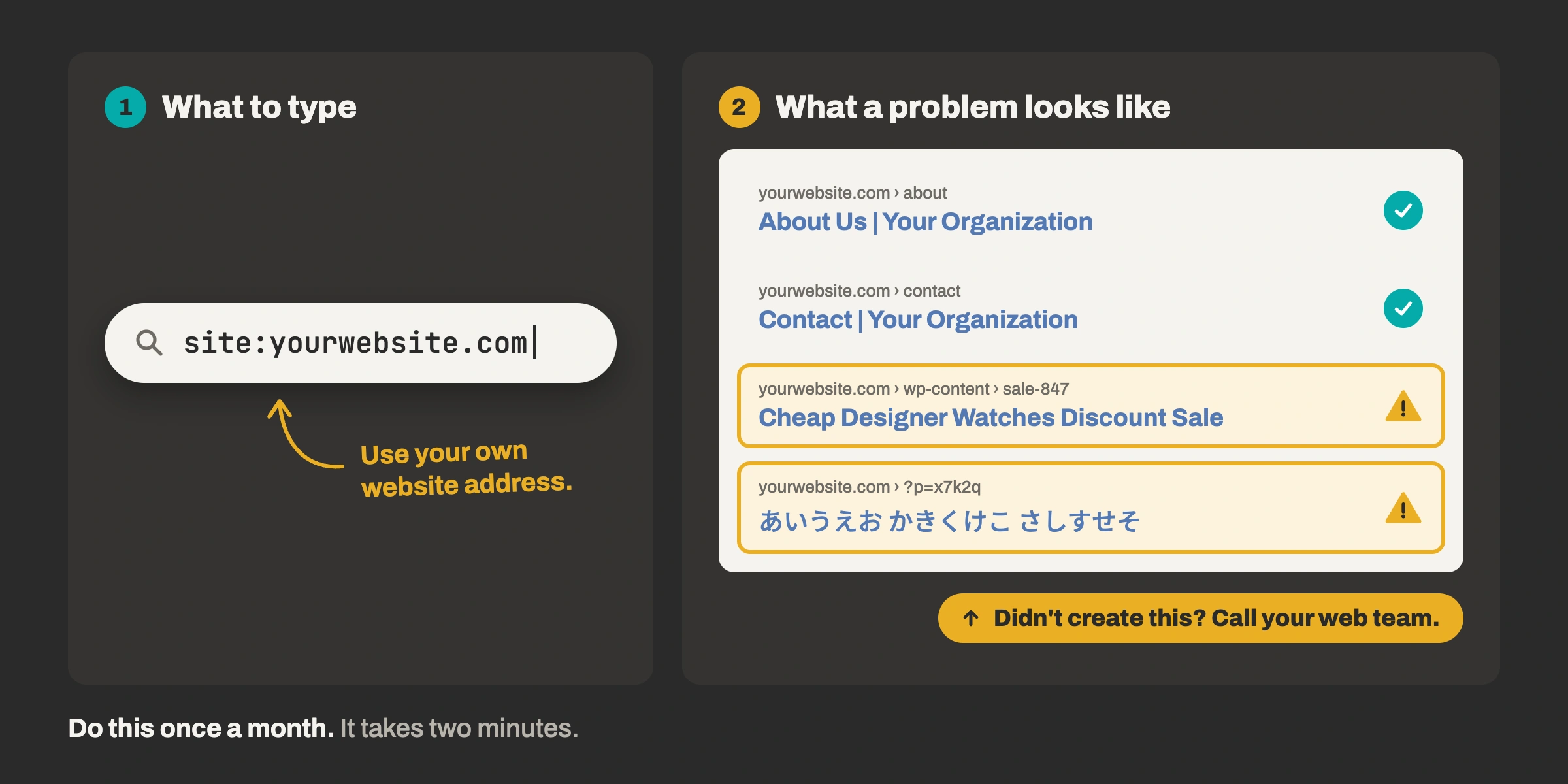
Once a month, go to Google and type the following into the search box, using your own website address:
site:yourwebsite.com
That shows the pages Google knows about on your website. Scroll through the results. If you see pages you don’t recognize, especially ones about products you don’t sell or in another language, contact your web team.
It’s not a full security check. But it takes two minutes, it needs no technical knowledge, and it catches one of the most common kinds of hack.
The bottom line
You don’t need to become a website security expert. You need to know three things: who your landlord is, who your handyman is, and how you’d hear about it if something went wrong.
If you can answer the five questions above without hesitating, you’re in better shape than most. If you can’t, that’s not a failure; it’s just this week’s to-do list. Send the questions to your web team and see what comes back.
Given how fast security problems are piling up right now, it’s a conversation worth having sooner rather than later.
Not sure who’s holding the keys to your website? YMC can help. We’ll look at your setup and tell you plainly where you stand and what, if anything, needs attention.
Sources

With over a decade of agency and in-house experience, Ben Huizinga is a creative and brand strategist focused on building brands that endure—crafting identities that make meaningful connections and stand the test of time. As Director of Brand and Creative at Young Marketing Consulting, Ben blends hands-on execution with high-level strategic thinking, helping organizations align their vision with the right voice, visuals, and experiences. He is also an experienced website architect, specializing in the development of beautiful, easy-to-use WordPress, Drupal, and Webflow sites that bring brands to life online. His work has shaped leading brands across the sustainability, technology, and nonprofit sectors—including Geothermal Rising, Echo Communications, and Bonterra, one of the world’s largest social good technology companies.
You might also be interested in these related articles:
AI is uncovering decades-old flaws in PHP, Drupal, and more. Here's why urgent security updates are piling up, and what website owners should do now.

A bloated RFP doesn’t guarantee a better website. It often guarantees safer, more generic proposals. Learn how to shift from feature checklists to clear outcomes and attract partners who think strategically, not just compliantly.